 Vaeroly
Help centre · For airline staff
Connecting Discord
This article shows how to post your airline's activity to a Discord channel, and how to connect your Discord server so linked pilots get their pilot ID as their nickname.
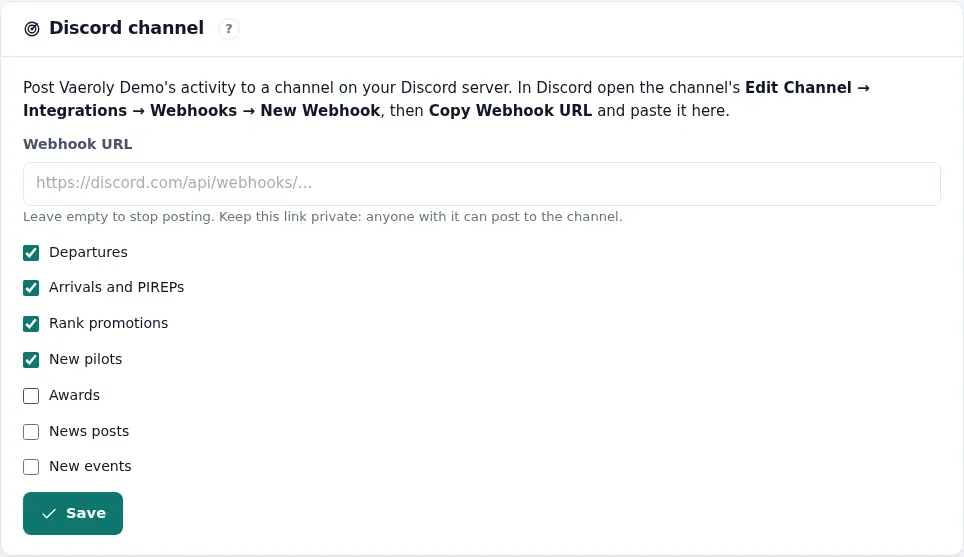
You need the Discord connection permission (or to be the owner). Both parts live on Staff → Settings, in the cards Discord channel and Discord server & pilot nicknames.
Post activity to a channel
This uses a Discord webhook. It works on its own, without the bot.
- In Discord, open the channel's Edit Channel → Integrations → Webhooks → New Webhook, then press Copy Webhook URL.
- In Vaeroly, go to Staff → Settings and scroll to Discord channel.
- Paste the link into Webhook URL.
- Tick what to post: Departures, Arrivals and PIREPs, Rank promotions, New pilots, Awards, News posts and New events.
- Press Save.
- Press Send test message and check the channel.
To stop posting, empty Webhook URL and press Save. Keep the webhook link private: anyone who has it can post to that channel.
https://discord.com/api/webhooks/.Connect your Discord server
Connecting the server lets the Vaeroly bot give linked pilots your airline's pilot ID as their nickname.
- Add the Vaeroly bot to your server with the link in the Discord server & pilot nicknames card. If there is no link, ask the platform administrator for it.
- In your server, type
/setup. Only members with Discord's Manage Server permission can use it. - Press the button in the reply. Log in to Vaeroly if asked.
- Pick your airline on the Connect a Discord server page.
The card now shows Connected and the server's name. One Discord server belongs to one airline. Picking an airline that already has a server replaces that server.
/setup button only works for a short while. If it has expired, type /setup again.Let pilots link their accounts
Pilots type /link in your server and press the button. They log in to Vaeroly and confirm, and their nickname changes to their pilot ID.
To make this easier, type /linkpanel in a channel such as #verify. The bot posts a message with a Link my account button that stays there.
Pilots can also link Discord from their Profile page.
Nickname format and role
In the Discord server & pilot nicknames card you can set:
- Nickname format: it must contain
{code}(the pilot ID).{name}is the pilot's name. The default is{code} | {name}. Discord allows 32 characters at most, so the name is shortened if needed. - Role for linked pilots (optional): in Discord, go to Server Settings → Roles, right-click the role and choose Copy Role ID. Paste the ID here.
Press Save. Then press Update all nicknames now to apply the change to pilots who have already linked.
For nicknames and roles to work, the bot's role must be above your pilots' roles in Server Settings → Roles. A bot can never rename the server owner.
Roles by rank
If your airline has turned on Discord roles by rank (under Staff → New features), you can pick a Discord role for each rank on Staff → Ranks. Linked pilots get the role of their current rank, and it changes when they are promoted. Pilots who leave or are suspended lose the airline's roles and their pilot-ID nickname. The bot needs Discord's Manage Roles permission, and its own role must be above the rank roles.
Channels by rank
To open a channel only to some ranks, use the rank roles:
- In Discord, open the channel's Edit Channel → Permissions.
- Under Roles/Members, pick @everyone and turn View Channel off (the red ✕).
- Add the rank's role and turn View Channel on (the green ✓). Add the roles of higher ranks too if they should see it.
Vaeroly never changes your channels itself. To check the setup, press Check channels by rank in the Discord box on Staff → Ranks. The page lists the channels each rank's role opens. It warns about rank channels everyone can see anyway, and about rank roles above the bot's role (the bot can't give those to pilots). It also lists the channels the bot can't see. That's fine for private channels, as the bot only needs to manage roles.
Disconnect the server
Press Disconnect server in the Discord server & pilot nicknames card. Channel posts through the webhook are not affected.