 Vaeroly
Help centre · For airline staff
Staff roles and permissions
This article explains how to make someone staff, give them roles, and change what each role can do.
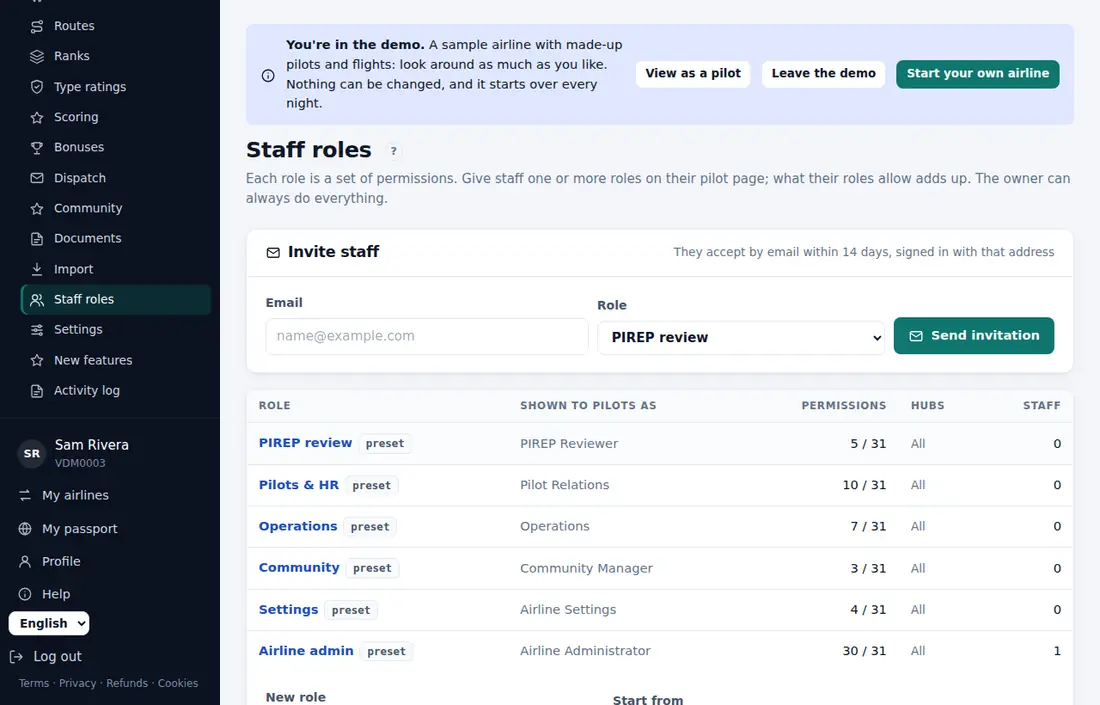
A role is a named set of permissions. A staff member can hold several roles, and their permissions add up. The owner can always do everything.
Give someone staff access
The person must already be an active pilot at your airline.
- Open Staff → Pilots and open the pilot's page.
- Press Give staff access.
- On the same page, the Staff roles card appears. Tick the roles they should have.
- Press Save roles.
A new staff member starts with no roles, so choose at least one. With no roles they only see the staff overview.
To take staff access away, press Remove staff access on their pilot page. Their roles go with it.
Invite someone by email
You can also invite someone who isn't a pilot yet. On Staff → Getting started, find the staff step, enter their Email, choose a Role and press Send invitation.
They must accept within 14 days, signed in with that email address. If they aren't a pilot yet, accepting makes them one. You can see open invitations on the same page.
The preset roles
Every airline starts with six preset roles:
- PIREP review: review, correct and invalidate PIREPs, decide manual claims, send dispatch messages.
- Pilots & HR: the pilot list, applications, suspensions, pilot records, transfer hours, imports and exports, type ratings and examining checkrides, hub transfers, leave and activity rules.
- Operations: hubs, fleet, routes, ranks, scoring, bonuses and finances.
- Community: news and NOTAMs, events, tours and awards, documents.
- Settings: airline settings, Discord, new features and the activity log.
- Airline admin: every permission except seeing billing.
You can change what a preset role does, but you can't remove it.
Change or add a role
Open Staff → Staff roles. The table shows each role, how many permissions it has, its hubs and how many staff hold it.
To add a role:
- Under the table, type a New role name.
- In Start from, pick Nothing or an existing role to copy.
- Press Add role.
To change a role, click its name. You can set:
- Name (staff see this).
- Title shown to pilots. Leave it empty to keep the role off the staff list pilots see.
- The permissions, grouped as PIREPs, Pilots, Operations, Community and Airline.
- Limit to hubs (see below).
Press Save role. Roles you added yourself can be deleted with Remove role; their members lose what the role gave them.
Limit a role to some hubs
Tick one or more hubs under Limit to hubs. The role's pilot and PIREP permissions then only cover pilots based at those hubs. Permissions marked "can be limited to hubs" are affected; the others are not. Leave every hub unticked for all hubs.
What you can't do
These rules stop staff from giving themselves more power:
- You need the Staff roles, and who is staff permission to manage roles.
- You can't add a permission to a role unless you hold it yourself.
- You can't give or take away a role that has permissions you don't hold.
- Only the owner can change their own or the owner's staff roles.
- Only the owner, or staff who manage staff and hold every permission of the other staff member, can make or remove staff.
If a page says you don't have permission, it names what's missing. Ask the owner or a staff member who manages roles.