 Vaeroly
Help centre · For airline staff
Scoring groups and failure rules
How your airline's PIREPs earn points, and which flights go to review, get rejected or need the pilot's reply.
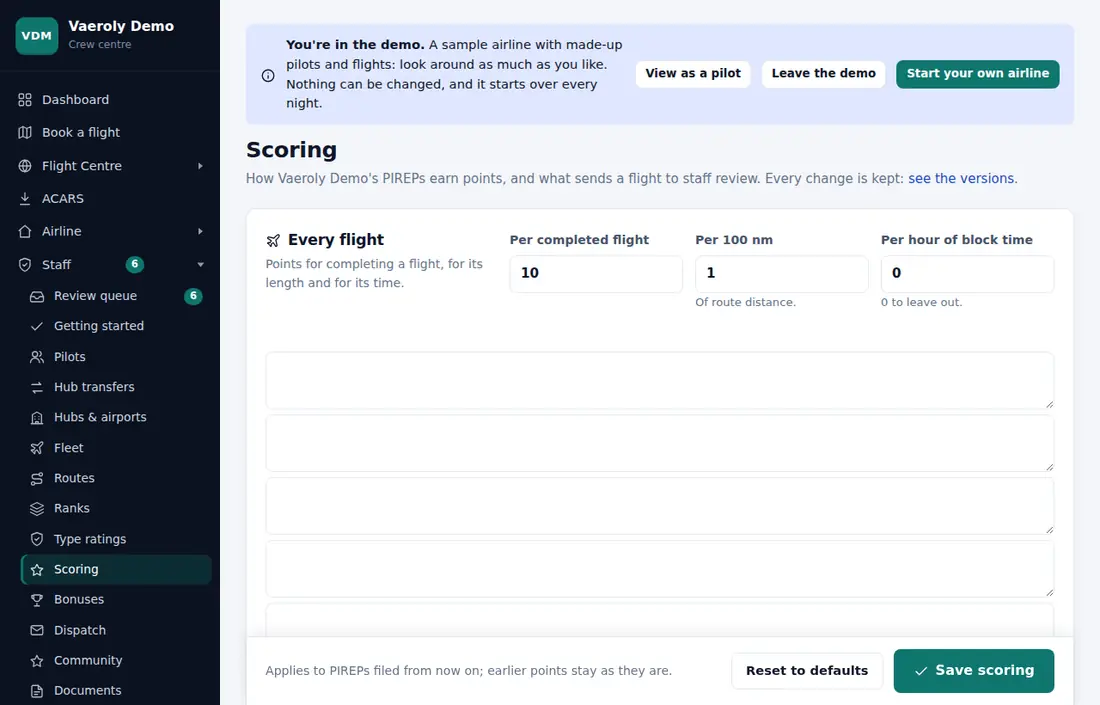
Change the scoring rules
- Open Staff → Scoring.
- Change the numbers you want. Most fields show their default once you change them.
- Use Try it at the bottom to see what a flight of a given distance, block time and landing rate would earn.
- Click Save scoring.
New rules apply to PIREPs filed from now on; earlier ones keep their points unless you re-score them (see Reviewing PIREPs).
Every change is kept as a numbered version: click see the versions at the top. Reset to defaults goes back to the standard rules.
What the page sets
- Every flight: points per completed flight, per 100 nm and per hour of block time.
- Landing: the fpm limits and points for a smooth, good and firm landing. Anything harder than firm is a hard landing and goes to review.
- Stable approach gates: the heights where ACARS checks the approach.
- Review and penalties: block time off schedule, high touchdown G, overspeed, fuel against the SimBrief plan, on-time departure, flight of the day, duels and streaks.
- Flight checks from ACARS: faults like stalls, slew mode or engine start without the beacon, with points per occurrence (counted up to 3 times). Checks a simulator can't report are skipped, never penalised. From ACARS 2.7 there are also nav lights, pitot heat and transponder checks at take-off; they start at 0 points.
Failure rules
If your airline has turned on Failure rules, the checks table gets an Arrival group. These are worked out from each ACARS PIREP:
- Diversion: landed more than a set distance from the planned arrival. The pilot and aircraft move to the airport they actually landed at.
- More than the allowed number of touchdowns.
- A long taxi-in.
- Paused for more than a set share of the flight.
- Two hard-landing levels. Only the worse level applies.
Set a number to 0 to turn that rule off.
What a rule does to the flight
For each check you choose what happens:
- Review: the flight goes to the review queue instead of being accepted automatically.
- Reject: if your airline has turned on Automatic rejection, the PIREP is rejected as soon as it's filed, with the reason. That section also lets you reject landings harder than a set fpm, flights not flown online (when your airline requires it), block times too far off, or any penalty at all.
- Invalidate and Pilot must reply: if your airline has turned on Complete and invalidated PIREPs. An invalidated flight gets no hours and no points. Pilot must reply asks the pilot to explain before staff review it.
When several apply, the strongest wins: invalidate, then reject, then ask the pilot.
Scoring per aircraft type
If your airline has turned on Scoring per aircraft type, a card at the bottom lets you give some types their own rules, for example softer landing limits for widebodies.
- Enter a name under New profile and click Create. It starts as a copy of the airline's rules.
- Tick its aircraft types (a type can be in only one profile).
- Change what differs and click Save profile.
Types in no profile use the airline's rules. With profiles on, landings can also be scored On a curve instead of in three steps.
Scoring groups v2
If your airline has turned on Scoring groups v2, the page gets a Scoring group rules section. It adds:
- Starting points for every flight.
- Band tables for the landing (vertical speed, G-force or both), flight length and route tags, one band per line.
- Departure and arrival windows, fuel limits, and points for flying online, shared cockpit and flights in a row.
- Engine, flaps and preparation rules (ACARS 2.5 and later).
With both switches on, Add the example groups creates six ready-made profiles as a starting point. They have no aircraft types, so nothing changes until you assign some.