 Vaeroly
Help centre · For airline staff
Reviewing PIREPs
How staff accept, reject or question the flights pilots file, and how to fix a PIREP after it has been decided.
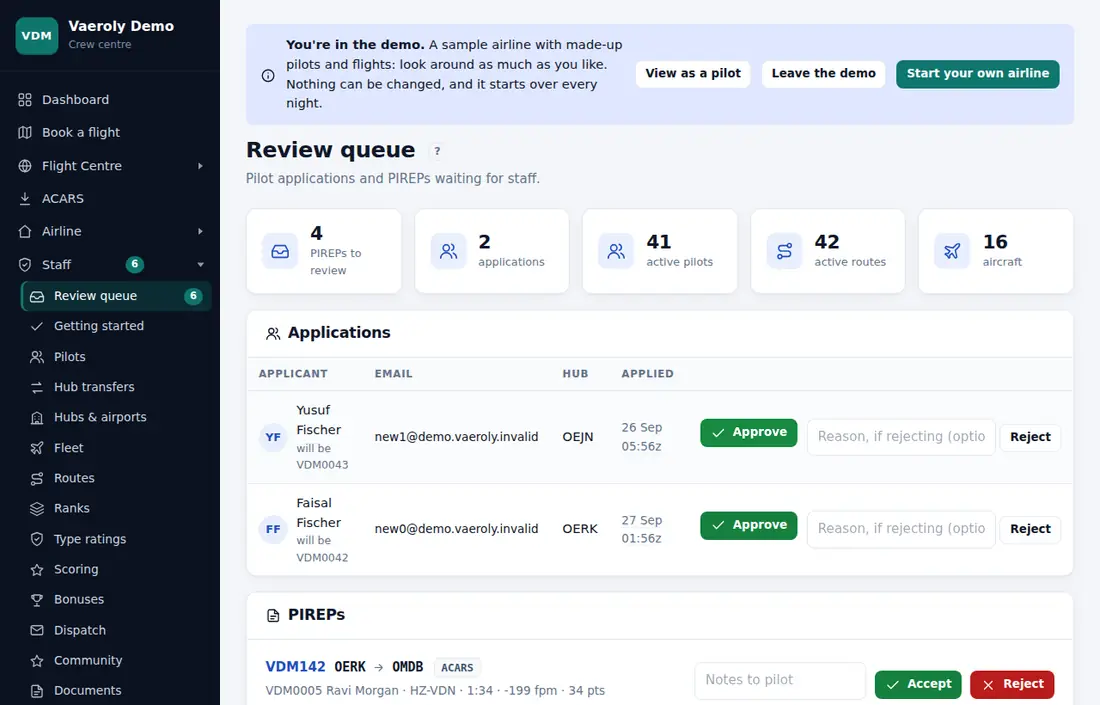
Accept or reject a PIREP
Open Staff → Review queue. The number next to it shows how many PIREPs and applications are waiting. PIREPs are listed oldest first. Each one shows the pilot, aircraft, block time, landing rate and points. Red badges show why the flight was flagged, for example a hard landing.
- Click the flight number to open the full PIREP: the score breakdown, the flight checks, the track and any comments.
- Type a note in Notes to pilot if you want to explain your decision. This is optional.
- Click Accept or Reject.
You can also decide straight from the queue. The pilot sees your note on their PIREP.
Accepted PIREPs count toward the pilot's hours, points and rank. Rejected ones don't.
Some rules to know:
- You can't review your own PIREP. Another staff member has to do it (the owner can review their own).
- A shared-cockpit flight is reviewed on the captain's PIREP. The co-pilot's copy follows your decision.
- Once a PIREP is accepted or rejected, you can't decide it again. Correct or re-score it instead (see below).
Which PIREPs reach the queue
If Auto-accept clean ACARS flights is ticked in Staff → Settings, clean ACARS flights are accepted by themselves. Flights that break a rule still come to the queue, for example a hard landing, a block time far off the schedule, or a check you set to Review. Manual PIREPs always come to staff.
What sends a flight to review, or rejects it automatically, is set on the Scoring page. See Scoring groups and failure rules.
Invalidate a PIREP
If your airline has turned on Complete and invalidated PIREPs, the PIREP page has an Invalidate button. Use it for a flight that shouldn't count at all: it gets no hours and no points. Clean flights that pass the checks by themselves are then marked Complete instead of Accepted. Both count.
Ask the pilot a question
If your airline has turned on Review tools, you can ask before you decide:
- Open the PIREP and type your question in Notes or question to the pilot.
- Click Ask the pilot.
The pilot gets an email and a notice on their dashboard. The PIREP moves to Waiting for the pilot at the bottom of the review queue. It comes back to the queue when the pilot replies in the comments, or after 5 days without a reply.
If your airline has also turned on Unanswered questions block flying, the pilot can't book or start a flight until they answer.
Review tools also add:
- Ready-made reasons (link under the PIREP list). Save reasons you use often, then pick one in the notes box.
- An email to the pilot with your decision and notes.
- A choice of which touchdown counts, when a flight touched down more than once. Click Count this one in the touchdown list. The PIREP is re-scored with the current rules.
See Replying to staff about a PIREP and What the PIREP statuses mean for the pilot's side.
Fix a PIREP after the decision
On the PIREP page, staff who can correct PIREPs have two tools:
- Correct the figures: change the landing rate, block time or fuel used, then click Save and rescore. Use it for wrong numbers from an older ACARS version.
- Re-score with the current rules: scores the PIREP again with today's scoring rules. Changing the rules never re-scores old PIREPs by itself. One-off bonuses, like events or flight of the day, stay.
Both changes are logged. As with reviewing, you can't correct or re-score your own PIREP.
Pilot comments after a decision
If your airline has turned on Pilot comments send a PIREP to review, a pilot who comments on their PIREP within a few days of filing sends it back to the queue. You set the number of days on Staff → New features.