 Vaeroly
Help centre · For airline staff
Setting up your airline (hubs, fleet, routes, ranks)
How to get a new airline ready for pilots: hubs, fleet, routes and ranks. Do the steps in any order and come back any time.
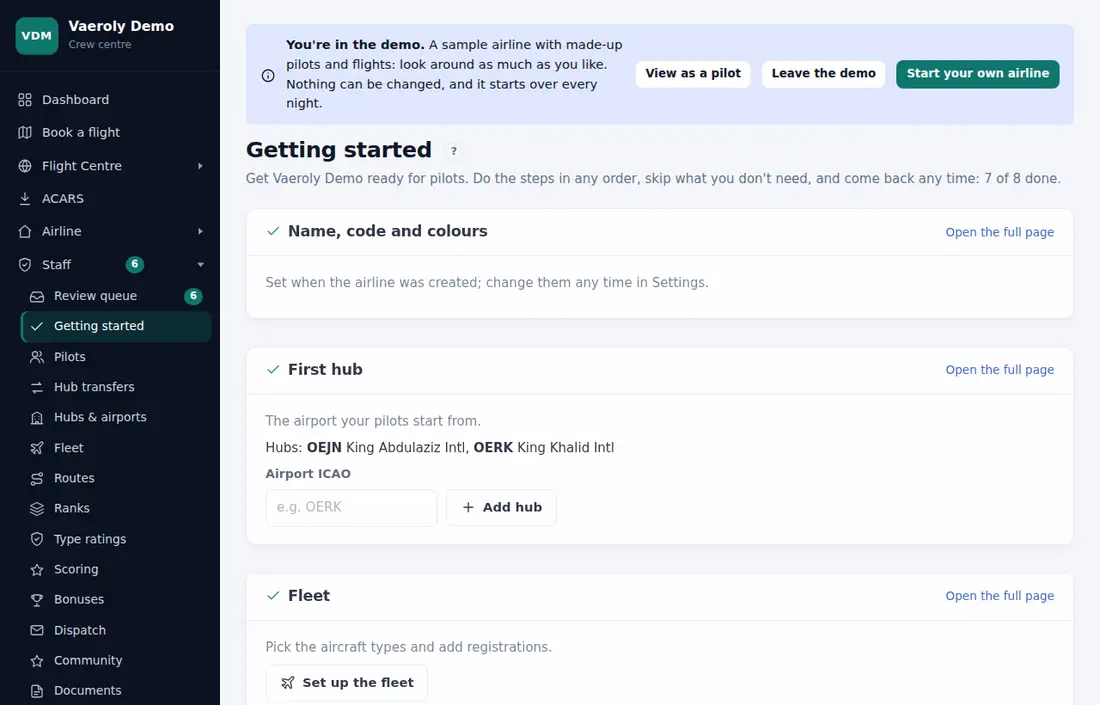
Use the Getting started page
Open Staff → Getting started. It lists each step, ticks the ones that are done, and lets you do the quick ones right there. Each step has an Open the full page link.
Hubs and airports
Go to Staff → Hubs & airports.
- Under Add a hub, type an airport's ICAO code, name or city. About 19,000 airports worldwide are already known.
- Click Add hub.
New pilots choose one of your hubs as their home base. Remove hub stops it being a hub; pilots based there keep it until they change it.
If an airport is missing (a new or private field), add it with Add an airport on the same page, with its ICAO code, name and coordinates.
Fleet
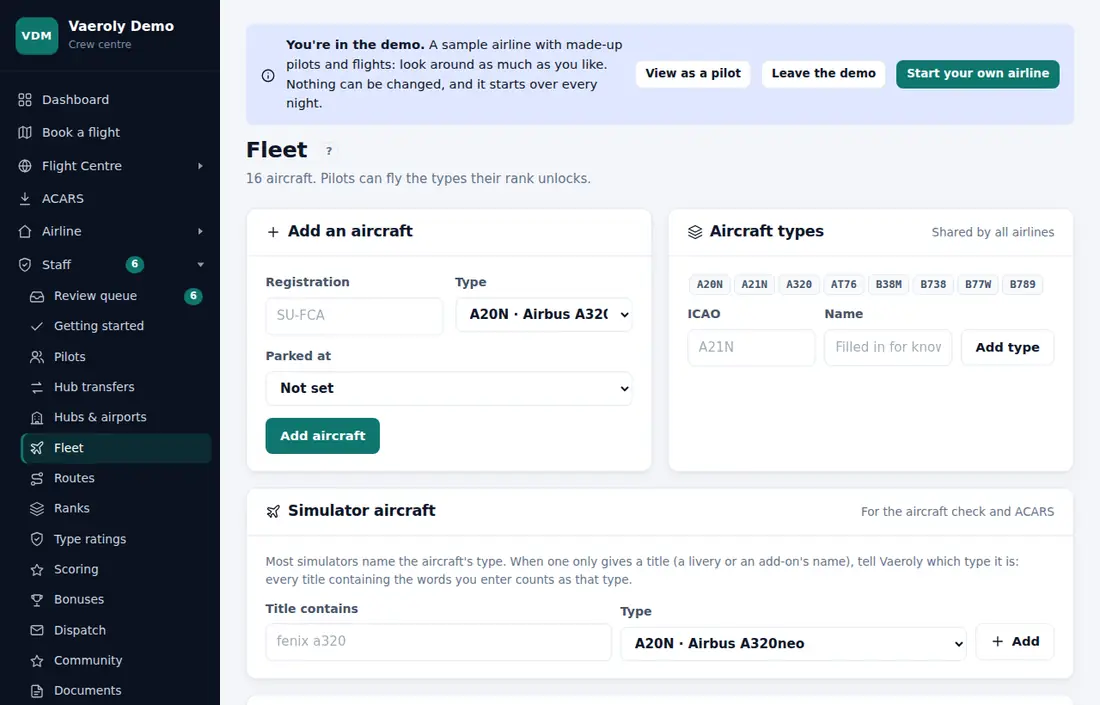
Go to Staff → Fleet.
- Under Add an aircraft, enter the Registration and the Type: type its ICAO code or name and pick it from the list. Every real-world type is there, including every aircraft SimBrief has. Optionally choose where it's Parked at.
- Click Add aircraft. A type no airline has used yet is added for you.
A type that isn't in the list can be added under Aircraft types with its ICAO code and name.
Under SimBrief airframes, each type can use one of SimBrief's variants of it (for example its freighter; pick it from the list) or the ID of an airframe you saved in SimBrief (e.g. 123456_1612345678). Empty means the plain type.
Each aircraft has an Edit form (livery, location, Pilots can book it and more). Ground takes it out of service and Return to service brings it back. An aircraft that has flown can't be deleted, so ground it instead.
Further down, SimBrief airframes sets the airframe pilots plan each type with, and Simulator aircraft tells Vaeroly which type a simulator title (a livery or add-on name) belongs to.
Routes
Go to Staff → Routes. Under Add a route, enter the Flight number, both airports and at least one aircraft type, then click Add route. Distance and block time are worked out for you; you can override the block time.
Optional fields:
- Departs (UTC), used for on-time stats.
- Type: Scheduled, Cargo, Charter or Training.
- Tags, so pilots can filter flights.
- First day and Last day, for seasonal flights.
- Operator (ICAO) and Callsign, for flights of another real airline or a different ATC callsign.
Suspend hides a route from booking and Activate brings it back. A route that has been booked can't be deleted, so suspend it instead.
There are two faster ways to add routes:
- Import real flights finds what a real airline flew from up to 6 airports (OpenSky Network, when your server is connected to it). Tick the ones you want and click Add the ticked routes.
- Staff → Import takes a CSV file. See Moving your airline from another platform to bring an existing airline over.
Ranks
Go to Staff → Ranks, or click Use the standard ladder on Getting started. The standard ladder adds six ranks, from Cadet (0 h) to Senior Captain (600 h). New pilots fly the smaller aircraft of your fleet, and captains fly everything.
To make your own, use Add a rank. A rank can require hours, points, flights and days in service. Pilots are promoted automatically when they meet every requirement. When you change a rank, pilots move up or down to match straight away.
Each rank unlocks aircraft types and keeps everything from the ranks below. Every pilot can fly a type that no rank lists. The page warns you if new pilots can't fly anything.
Tick Honorary for a rank that staff give by hand, like a team rank. It has no requirements and isn't part of promotion.
See Ranks and points for how pilots see this.
Be found by new pilots
On Staff → Settings, under Rules, tick List us in the public airline directory and press Save. Your airline then appears on the public Airlines page (linked at the bottom of every page), with its name, hubs, number of aircraft and pilots, and a link to join. Nothing about individual pilots is shown. Untick it to leave the directory.
Your own email wording
If your airline has turned on Your own email wording, Staff → Emails lists the emails your airline sends pilots: application and PIREP decisions, questions, comments, transfers, rank requests, checkrides, claims, leave and inactivity. Open one, write your own Subject and Text, and press Save; the preview shows it with sample values. You can use {name} (the pilot), {airline}, {message} (the standard text, in the pilot's language) and {link}. Leave a field empty to keep the standard one, or press Back to the standard email. Your text goes out as you wrote it, whatever the pilot's language, so keep {message} if your pilots read different languages.
Analytics
If your airline has turned on Airline analytics, Staff → Analytics shows flights and pilots flying week by week, how many new pilots are still flying after 30 and 90 days, flights by hub, aircraft type and route, the routes nobody has flown for 90 days, average points and landing rate each week, and how long PIREPs wait for review (the median, and the 90th percentile: nine in ten are reviewed within that time).
Next steps
- Connecting Discord
- Staff roles and permissions, to invite the people who help you
- Scoring groups and failure rules