 Vaeroly
Help centre · For pilots
Ranks and points
Each airline has its own ladder of ranks. This article explains how you move up, where your points come from, and which aircraft your rank lets you fly.
Checking your progress
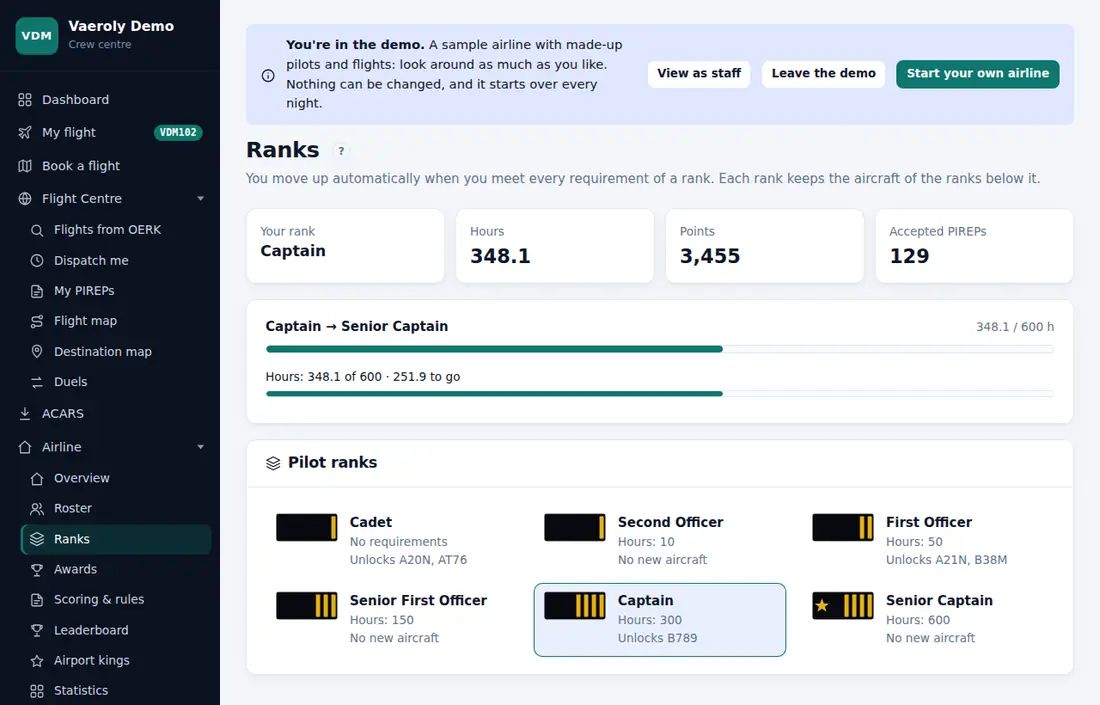
Open Airline → Ranks in your airline's menu. At the top you'll see:
- Your rank
- Hours, Points and Accepted PIREPs so far
- A progress bar to your next rank, with each requirement listed (for example "Hours: 42.5 of 50 · 7.5 to go")
Below that, Pilot ranks lists every rank with its insignia, what it takes, and which aircraft it unlocks. Your own rank is highlighted.
How promotion works
You move up by yourself as soon as you meet every requirement of a rank. There's nothing to apply for. A rank can ask for any mix of:
- Hours: flight time
- Points: your points total
- Accepted PIREPs: the number of flights that count
- Days in service: days since you joined this airline
A rank that asks for nothing is usually the starting rank.
Your rank is always worked out from your current totals. If points are taken away, for example as a penalty, you can drop back below a rank's points requirement.
Staff can also give you a rank directly. You keep that rank even if your totals are lower, and you still move up past it the normal way.
What counts
Only PIREPs with the status accepted or complete count toward hours, points and accepted PIREPs. Pending, rejected and invalidated flights don't. See What the PIREP statuses mean.
If your airline has turned on Rejected flights keep their hours, a rejected flight still adds its hours (but not its points). This only applies to flights filed after the airline switched it on.
Hours can also include transfer hours that staff added, for example from your record at another airline. The Hours box shows how many were transferred and how many you flew.
Where points come from
Most points come from your flights. Each PIREP is scored with your airline's rules, and the Score card on the PIREP shows every line that added or took away points. If your airline has turned on Scoring and PIREP rules page, Airline → Scoring & rules explains those rules in full.
Points can also be added or taken away outside a flight, for example by staff, or as a reward for a duel, a team challenge or a community goal. The Points box on the Ranks page shows how many came from outside your flights.
The Leaderboard counts those extra points too, in the period they were given.
Aircraft and ranks
Each rank can unlock aircraft types. You can fly the aircraft of your rank and of every rank below it. The Ranks page shows what each rank adds, or "No new aircraft".
Aircraft types that no rank mentions are open to everyone. If your airline uses type ratings, some aircraft also need a rating: see Flight Centre → Type ratings.
When you book, you'll only be offered aircraft you're allowed to fly. See Booking a flight and finding it again.
Coming from another airline?
If your airline has turned on Rank-transfer requests, the Ranks page has a Coming from another airline? section. You can ask staff to recognise the hours and rank you had somewhere else.
- Fill in Previous airline, Hours flown there and Rank there.
- Choose Rank you'd like here, or leave Let staff decide.
- Add a Proof link staff can check, such as your pilot profile there, and an optional Note to staff.
- Press Send the request.
You can have one request waiting at a time, and you can press Withdraw the request while it's waiting. You get an email when staff decide. If they approve, the hours they grant are added as transfer hours, and the rank they grant becomes your minimum rank.
Importing your logbook
If your airline has also turned on Import past flights, the same section has Or import your logbook. Export your flights as a CSV file from Volanta, FsHub, smartCARS or another tool, choose where it came from, pick the file and press Show the flights. You'll see each flight and the total hours. Press Send … hours to staff to send them as a request, or Cancel. The file itself isn't kept.
The file needs a departure, an arrival and a flight time for each flight; a date and aircraft are shown when there. Rows without them, over 24 hours, or listed twice are left out, and the page says how many.
Type ratings and checkrides
Some aircraft need a type rating. Open Type ratings in the menu to see which ones.
- Usually you press Start checkride, book any flight on that type and fly it with ACARS. The flight is checked against the airline's limits, and a pass gives you the rating.
- If your airline uses examiners, you press Request checkride instead (with a note if you like). An examiner sets the flight you must fly and you get an email. Book it from the Type ratings page and fly it with ACARS. The examiner then looks at the flight and passes or fails it with notes, and you get an email either way. Other flights on the type don't count.
Team and honorary ranks
Some airlines also have team or honorary ranks, such as a staff title. They're shown under Team & honorary ranks. Staff give these out; you can't earn them by flying.