 Vaeroly
Help centre · For pilots
Installing and using ACARS
Vaeroly ACARS is a desktop app that records your flight from the simulator and files the PIREP when you park. One app covers all your airlines.
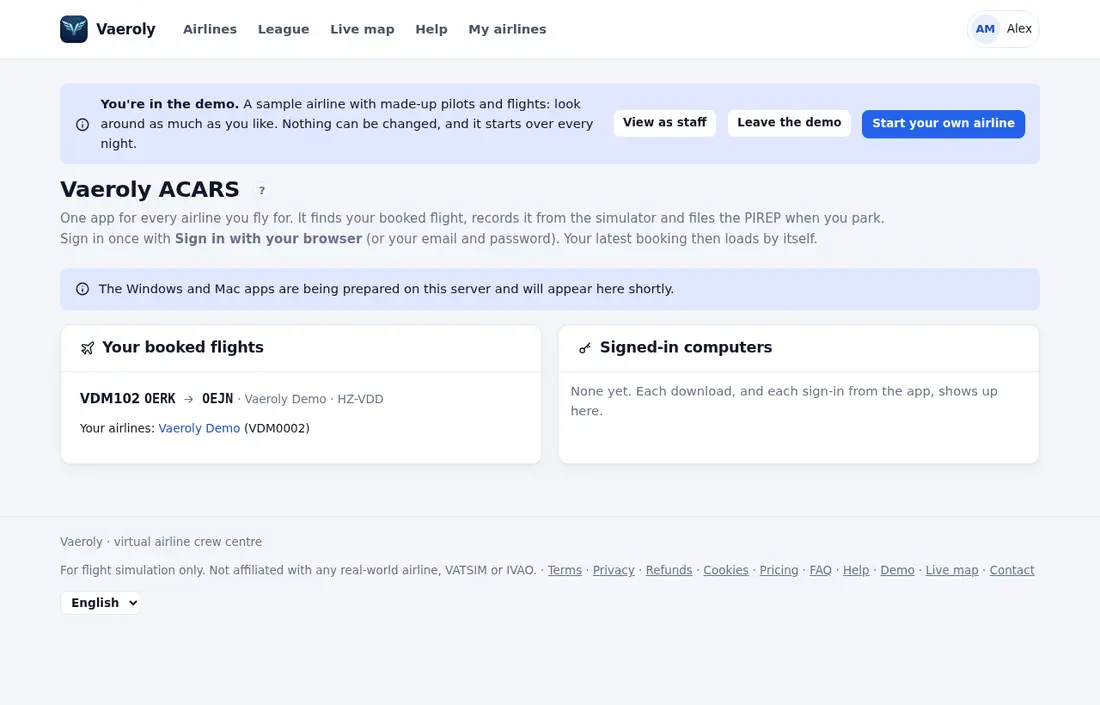
Download and first start
- Open the ACARS page (or ACARS in your airline's menu).
- Press Download for Windows, Download for Mac or Download for Linux and unzip the file.
- Windows: double-click
VaerolyACARS.exe. If you see "Windows protected your PC", click More info, then Run anyway. - Mac: drag VaerolyACARS to Applications and open it. It's signed by Vaeroly and checked by Apple, so macOS opens it like any other app.
- Linux (64-bit, Ubuntu 22.04, Fedora 36 or newer): keep the unzipped folder somewhere you can write to, such as your home folder, and start
VaerolyACARSfrom it. Linux is for X-Plane.
For Intel Macs, open Other options at the bottom of your airline's ACARS page and use Download (Python version). It needs Python 3.
Signing in
The download comes signed in as you, so there's nothing to type. A copy without its settings file asks you to sign in:
- Sign in with your browser: the crew centre opens. Check the code matches the one in ACARS and press Allow.
- Or enter your email and password (and two-step code, if asked) and press Sign in.
Every signed-in copy is listed under Signed-in computers on the ACARS page, with a Sign out button.
Your simulator
Pick it under SIMULATOR in the app, or leave Detect automatically.
MSFS 2020 and 2024 (Windows)
Works out of the box through SimConnect (MSFS 2020 / 2024 (SimConnect)). We recommend installing FSUIPC7 from fsuipc.com (the free version is enough): when it's running, ACARS reads through it and falls back to SimConnect otherwise. Run ACARS, FSUIPC and the simulator all normally, or all as administrator.
Prepar3D (Windows)
Install FSUIPC for your Prepar3D version and choose MSFS / Prepar3D through FSUIPC (or Detect automatically).
X-Plane 11 and 12 (Windows, Mac and Linux)
Nothing to install: ACARS uses X-Plane's own network data (UDP port 49000). Choose X-Plane 11 / 12 (direct). The Mac app is for X-Plane on Apple Silicon Macs (M1 and newer).
Flying a flight
- Book a flight on the crew centre. It appears under YOUR FLIGHT within a minute, or press Refresh. With bookings at several airlines, ACARS flies the most recent one.
- Load the aircraft on the ground at the departure airport.
- Press Start tracking. If the simulator isn't ready yet, ACARS keeps trying.
- Fly as usual with the ACARS window open. Reply to staff messages under MESSAGE DISPATCH.
- At the gate, stop and shut down the engines. After about 10 seconds standing still, the flight ends and the PIREP is filed.
Need to keep the engines running at the gate? Press Finish flight (parked with engines running). Stop tracking abandons the flight: nothing is filed and your booking stays open.
What gets recorded
- Flight phases from boarding and pushback to arrival, and block time from first movement to parking.
- Landing rate, G load, touchdown speed and any bounces.
- Fuel at the gate, take-off, landing and parking.
- Your position every 10 seconds on the airline's Live map, and the full flight path.
- A flight log: engines, lights, flaps, gear and parking brake.
- Checks such as overspeed below 10,000 ft, stall warnings, steep bank, pause, slew, time acceleration, refuelling in flight, position jumps and crashes.
- The aircraft loaded in the simulator. If your airline has turned on Aircraft check, a flight in a different type than booked goes to review.
Filing and problems
When the PIREP is filed, ACARS shows its status and points. See What the PIREP statuses mean.
- No connection to the crew centre: the PIREP is saved on your computer and sent when the connection is back. Send now retries.
- ACARS closed mid-flight: open it again and it offers to resume. Load the aircraft where it was and choose Yes.
- Couldn't track at all: use Manual PIREP on your booking page; staff review it.
When a new version is out, press Update now in the app; your sign-in and saved flights stay.