 Vaeroly
Help centre · For pilots
Booking a flight and finding it again
How to find a flight in your airline's schedule, book it, and get back to your booking later to plan, fly or cancel it.
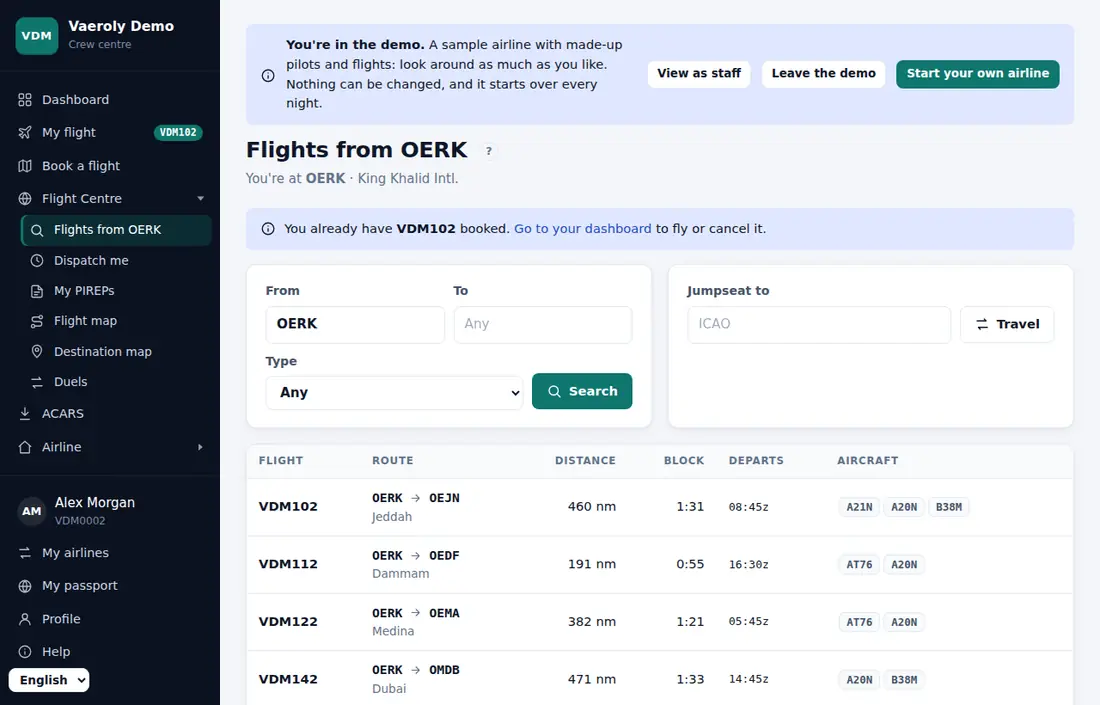
Find a flight
- In your airline's menu, open Flight Centre and choose Flights from followed by your current airport.
- The list shows the scheduled flights leaving from where you are. Use From, To, Type and Tag to search, then press Search.
- Each row shows the flight number, route, distance, block time, scheduled departure (UTC) and the aircraft types that fly it.
- Press Book on the flight you want.
If a row says Rank locked · why?, none of its aircraft types is open to your rank yet. Click it to see why.
Or pick a destination on a map with Book a flight in the menu.
Moving to another airport
Your pilot stays where your last flight landed. To fly from somewhere else, type an ICAO code in Jumpseat to and press Travel. You can't jumpseat while you hold a booking.
If your airline makes pilots fly from where they are, you can only book flights leaving from your current airport.
Charters
If your airline allows charters, Fly a charter appears on the same page. Enter any destination in To, pick an aircraft and press Book charter. Some airlines send every charter PIREP to staff review.
Book the flight
Pressing Book opens the dispatch page. Everything is filled in with sensible values, so you can book straight away or adjust:
- Aircraft: pick a tail. Aircraft already at the departure airport are listed first. Use ★ Favourites only or Random if you like.
- Aircraft & callsign: your Callsign and Flight number, and the Dispatch via SimBrief switch.
- Schedule & route: Departure date (UTC) and Departure time (UTC), a routing, flight level and cost index. The departure must be between now and two weeks ahead.
- Payload: passengers, passengers with hold luggage, and cargo.
- Network & co-pilot: the network you'll fly on, and a Shared cockpit co-pilot from your airline.
- SimBrief settings: see Planning with SimBrief.
Press Create booking. You land on your booking page.
Find your booking again
While you hold a booking, My flight appears near the top of your airline's menu, with the flight number next to it. Click it to open the booking page. A dot next to it means ACARS is tracking the flight live.
Your booked flight also shows on your airline's Dashboard, and on the ACARS page.
The booking page
The Pre-flight card on the right ticks off four steps as you go:
- Plan: attach a SimBrief plan.
- File: send your flight plan to VATSIM or IVAO with the buttons under File on a network, or fly offline.
- Connect: open Vaeroly ACARS and press Start tracking.
- Fly: land and park, and ACARS files the PIREP.
Booking actions also has charts links, Manual PIREP and Manage.
Change or cancel
- Change booking details lets you edit the callsign, network, load, cruise level and routing without cancelling. Regenerate your SimBrief plan afterwards so it matches.
- Cancel & rebook cancels the booking and takes you back to the dispatch page for the same flight, for example to pick another aircraft or time.
- Cancel booking cancels it for good.
A booking made more than 48 hours ago with no ACARS activity in the last 24 hours is cancelled automatically, so abandoned bookings don't hold an aircraft forever.
When you can't book
The dispatch page says You can't book this flight yet. and lists the reasons, for example no aircraft of that type is free. Other messages you may see:
- "You already have an active booking." Fly or cancel it first.
- "You're at …; this flight departs …" Jumpseat to the departure airport first.
- "You're marked inactive." Press I'm back on your dashboard.
- If your airline has turned on Unanswered questions block flying, you can't book while staff wait for your reply on a PIREP. See What the PIREP statuses mean.