 Vaeroly
Help centre · For pilots
Planning with SimBrief
How to attach a SimBrief flight plan (OFP) to your booking, and use it to file on VATSIM or IVAO.
The quick way: plan while you book
On the dispatch page (after pressing Book on a flight), leave Dispatch via SimBrief switched on and press Create booking. What happens next depends on how your crew centre is set up. The small text under the switch tells you which:
- "Generate the flight plan automatically when you book": a small SimBrief window opens. Press Generate in it if it asks. The plan is attached to your booking by itself, and the booking page fills in the fuel, weights, runways and times.
- "Open SimBrief with this flight filled in when you book": SimBrief opens in a new tab with your flight already filled in. Press Generate there, then come back to the booking page.
Linking your SimBrief username
When SimBrief opens in a new tab, the crew centre needs your SimBrief username to find your plan. Your airline's Dashboard asks for it once, under your booked flight: type it into Your SimBrief username and press Save. You can also set it on your Profile under SimBrief username.
After that, the plan you generate for this flight is picked up by itself when you come back to the tab. You can also press Import my latest OFP on the booking page.
The plan must be for the same departure and arrival as your booking. If your latest SimBrief plan is for another city pair, you'll see a message asking you to generate a plan for this flight first.
Planning after booking
If you booked without SimBrief, or want a new plan, open your booking (My flight in the menu). Under Booking actions, the Plan group has:
- Generate SimBrief OFP or Generate on SimBrief (it says Regenerate once a plan is attached). A new plan replaces the old one.
- Import my latest OFP, if your SimBrief username is saved.
- Open OFP (PDF) and Edit SimBrief OFP, once a plan is attached.
If you use Change booking details to change the load, callsign or route, generate the plan again so it matches.
What Vaeroly sends to SimBrief
Your flight number, callsign, airports, aircraft and registration, scheduled time en route, departure time and your name as captain, plus your dispatch-page choices: passengers, cargo, flight level, cost index, routing and alternates.
The SimBrief settings section of the dispatch page lets you set more:
- Airframe / profile ID: one of your saved SimBrief airframes. Left empty, the airline's default for that aircraft is used.
- Map, Alternates, Take-off alternate and Primary alternate.
- Options: Navlog, ETOPS, Step climbs, Take-off performance (TLR), NOTAMs and FIR NOTAMs.
- Fuel & weight: taxi times, extra fuel, minimum fuel, contingency and reserve.
Keep Save these SimBrief settings for my next dispatch (on any device) on to reuse them. Preview OFP opens SimBrief with all your choices, without booking.
If your airline has turned on Suggested alternates, the booking page also suggests alternate airports with their weather. After choosing one, generate the plan again to include it.
Filing on a network
Once a plan is attached, Send to VATSIM and Send to IVAO under File on a network open the network's flight plan form already filled in from your SimBrief plan.
If the plan's departure time has passed, networks refuse it. Regenerate the plan, or press Copy ICAO flight plan (it uses a time about 20 minutes from now) and paste it with Import ICAO FPL on the network's form.
Without a plan, the buttons open a blank form.
APOC is listed too when your SimBrief plan includes its link.
Loading the plan into your simulator
Once a plan is attached, the Plan group shows Flight plan file downloads made from it:
- .pln for Microsoft Flight Simulator and Little Navmap: in MSFS, load it on the World Map with Load/Save.
- .fms for X-Plane 11 and 12: put it in
Output/FMS plansinside your X-Plane folder, then load it in the aircraft's FMS. - .rte for PFPX: the route on one line (departure, route, destination).
The files follow your SimBrief route fix by fix. Procedures (SID and STAR) are included as plain waypoints: pick the real procedure in the aircraft's FMS.
Ready to dispatch
The Pre-flight card on the booking page ticks each step as you go: the plan, the aircraft being at your departure airport (when your airline tracks where its aircraft are), Brief (press Mark as read once you've read the weather and NOTAMs), filing, and connecting ACARS.
Cargo by container
If your airline plans cargo by container, the Payload section of the dispatch page has a table of container and pallet types (LD3, LD7, PMC and others). Enter how many of each and the load in each: the cargo total fills in by itself, including each container's own weight, and goes to SimBrief.
Short on time? Dispatch me
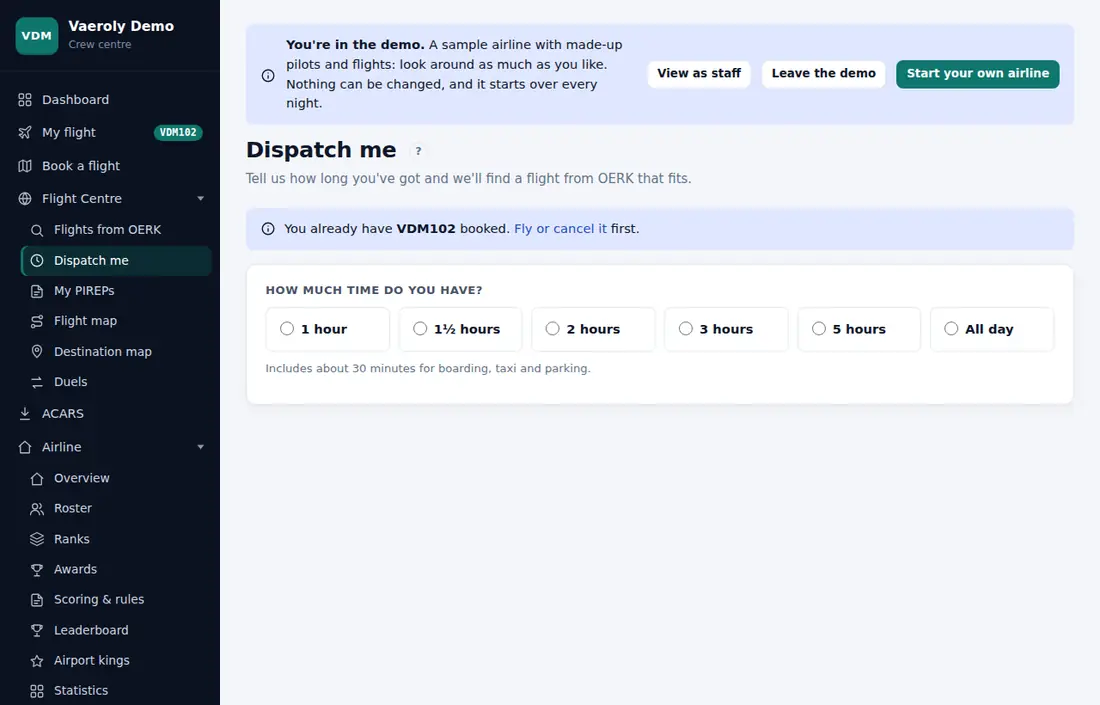
Dispatch me in the Flight Centre menu finds flights for the time you have. Choose how long you've got (1 hour up to All day). It lists flights that fit, on aircraft you may fly, allowing about 30 minutes for boarding, taxi and parking. Press Book to book one straight away with its suggested aircraft, then plan it from the booking page as above.